What is eSIM iPhone & How It Works: Complete Guide 2026
The way we connect our iPhones to cellular networks has fundamentally changed. Gone are the days when you needed to visit a carrier store, wait for a physical SIM card, and carefully insert that tiny chip into your device. The introduction of eSIM has revolutionized mobile connectivity, making it easier than ever to switch carriers, maintain multiple phone numbers, and stay connected while traveling internationally.
If you've recently purchased a new iPhone or are considering upgrading, understanding eSIM technology is essential. This comprehensive guide will walk you through everything you need to know about eSIM iPhone, from the basics of what it is to advanced features that can transform how you use your device.
Understanding eSIM Technology: The Digital Revolution in Mobile Connectivity
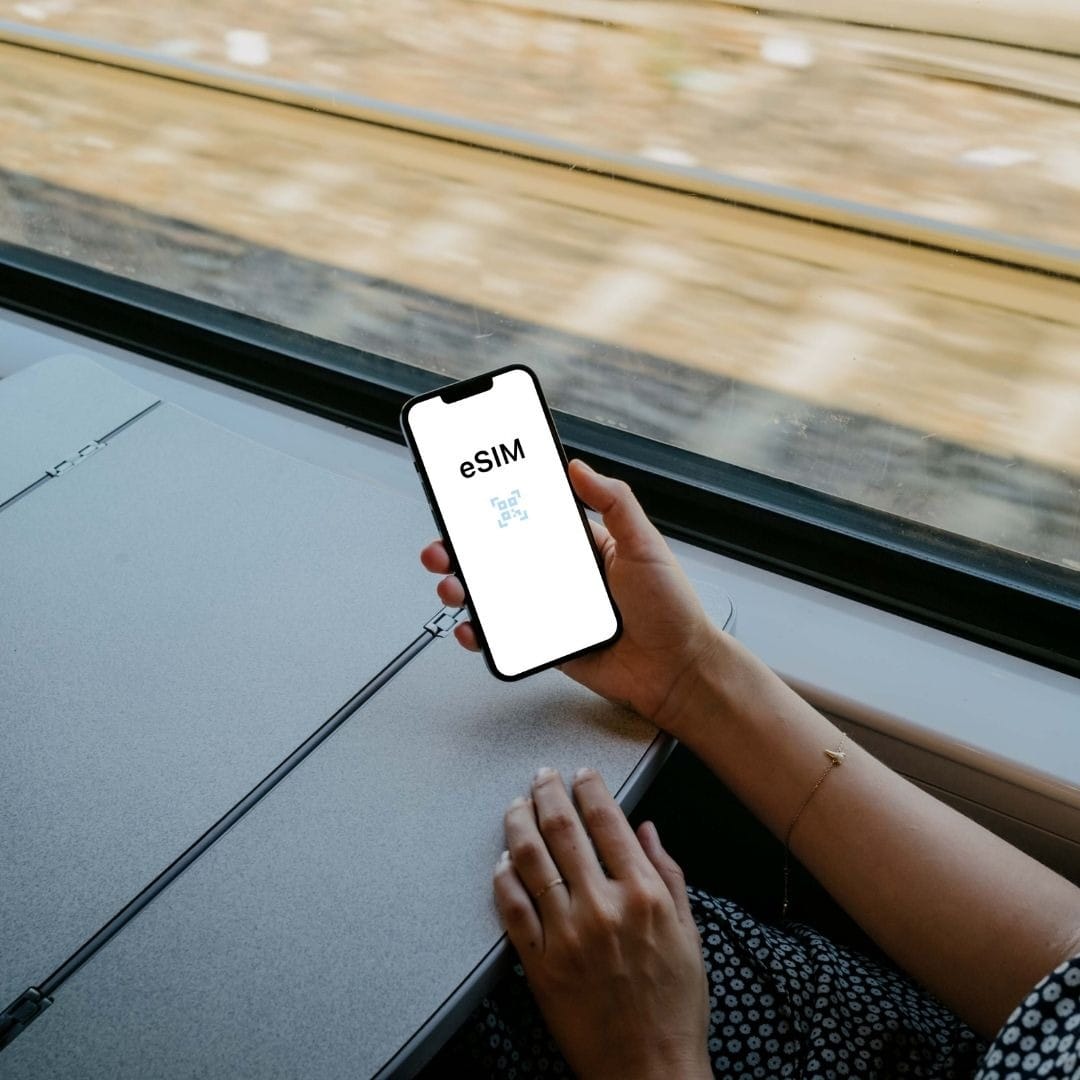
If you’re wondering what is eSIM iPhone technology, it refers to an embedded SIM (eSIM) that’s built directly into your iPhone’s hardware. Unlike traditional physical SIM cards that need to be inserted or replaced, an eSIM is completely digital and permanently integrated into the device. Think of it as a smart, programmable chip that allows your iPhone to connect to cellular networks without using a physical SIM card.
The technology behind eSIM is both advanced and user-friendly. When you set up an eSIM, your mobile carrier sends a digital SIM profile directly to your iPhone over a secure wireless connection. This profile contains everything needed to access the carrier’s network, including authentication details, network configurations, and your assigned phone number. Because the entire setup happens digitally, there’s no need to visit a store or wait for a SIM card delivery.
One of the biggest advantages of understanding eSIM iPhone functionality is the flexibility it offers. A single eSIM chip can store multiple carrier profiles, allowing you to switch between networks or manage more than one phone number on the same device. This is especially useful for international travelers, remote professionals, and users who want to keep work and personal numbers separate.

How to Activate eSIM on iPhone
Knowing how to activate eSIM on iPhone is just as important as understanding the technology itself. Activation is typically quick and hassle-free. Most carriers provide a QR code or in-app activation method that installs the eSIM profile directly onto your iPhone. Once scanned or confirmed, your iPhone connects to the carrier’s network within minutes—no physical SIM required.
Overall, eSIM iPhone technology simplifies connectivity, reduces dependency on physical SIM cards, and gives users greater control over their mobile networks. Whether you’re switching carriers, traveling abroad, or managing multiple numbers, understanding what is eSIM iPhone and how to activate eSIM on iPhone can significantly enhance your mobile experience.
The Evolution from Physical SIM to eSIM
To appreciate the significance of eSIM technology, it helps to understand the journey of SIM cards. The first SIM cards, introduced in the early 1990s, were about the size of a credit card. Over the years, they shrunk dramatically through several iterations: from standard SIM to mini-SIM, then to micro-SIM, and finally to the nano-SIM cards used in most modern smartphones before eSIM adoption.
Each reduction in size was driven by the need to create more space inside increasingly compact devices for larger batteries, better cameras, and additional features. But even the smallest nano-SIM still required a physical slot, taking up valuable internal space and creating potential points of failure with the SIM tray mechanism.
eSIM represents the logical next step in this evolution. By eliminating the physical card and tray entirely, manufacturers gain additional space for other components while simultaneously making devices more water-resistant and durable. For users, the benefits extend far beyond hardware improvements to include unprecedented convenience and flexibility in managing cellular connections.

How iPhone eSIM Support Has Evolved Across Models
Which iPhone Models Support eSIM?
Apple's journey with eSIM technology began in 2018, and support has expanded significantly across subsequent iPhone generations. Understanding which models support eSIM is crucial for anyone looking to take advantage of this technology.
Does iPhone 11 have eSIM? Yes, the iPhone 11 esim, iPhone 11 Pro, and iPhone 11 Pro Max all include eSIM support. These devices can use one physical nano-SIM and one eSIM simultaneously, enabling dual-SIM functionality. This was particularly exciting when these models launched, as it gave users the flexibility to maintain two separate phone numbers or switch between carriers without physically changing SIM cards.
Does iPhone 12 have eSIM? The iPhone 12 lineup, including the iPhone 12 mini, iPhone 12, iPhone 12 Pro, and iPhone 12 Pro Max, all feature eSIM support with dual-SIM capabilities. These models continued Apple's commitment to the technology and refined the user experience for activating and managing eSIM profiles.
Does iPhone 13 have eSIM? Every iPhone 13 model supports eSIM technology. The iPhone 13, iPhone 13 mini, iPhone 13 Pro, and iPhone 13 Pro Max all offer dual-SIM functionality with either two eSIMs active simultaneously or one physical SIM plus one eSIM. This generation saw improvements in how users could manage multiple cellular plans directly from their device settings.
iPhone 14 eSIM Support: The iPhone 14 series marked a revolutionary change, at least for the United States market. All iPhone 14 models sold in the US are eSIM-only devices, completely eliminating the physical SIM card tray. The iPhone 14, iPhone 14 Plus, iPhone 14 Pro, and iPhone 14 Pro Max demonstrate Apple's commitment to this technology. Outside the US, these models still include a physical SIM tray to accommodate markets where eSIM adoption is less widespread.
iPhone 15 eSIM Support: The iPhone 15 lineup continues the eSIM-only approach for US models while maintaining dual-SIM capabilities globally. The iPhone 15, iPhone 15 Plus, iPhone 15 Pro, and iPhone 15 Pro Max all offer robust eSIM support with the ability to store multiple eSIM profiles and have two active simultaneously.
iPhone 16 eSIM Support: The latest iPhone 16 series maintains full eSIM compatibility across all models. These devices represent the most mature implementation of the technology, with streamlined activation processes and enhanced carrier compatibility worldwide.
Is iPhone 17 series eSIM compatible? Yes, the iPhone 17 series is eSIM compatible, including iPhone 17, iPhone 17 Plus, iPhone 17 Pro, iPhone 17 Pro Max, and iPhone 17 Air. All iPhone 17 models support eSIM and dual eSIM, allowing users to activate mobile and travel eSIM plans without needing a physical SIM card.
Complete List of eSIM-Compatible iPhones
For quick reference, here's the complete list of iPhone models that support eSIM technology:
- iPhone XS and iPhone XS Max
- iPhone XR
- iPhone 11, iPhone 11 Pro, and iPhone 11 Pro Max
- iPhone SE (2nd generation and later)
- iPhone 12 mini, iPhone 12, iPhone 12 Pro, and iPhone 12 Pro Max
- iPhone 13 mini, iPhone 13, iPhone 13 Pro, and iPhone 13 Pro Max
- iPhone 14, iPhone 14 Plus, iPhone 14 Pro, and iPhone 14 Pro Max
- iPhone 15, iPhone 15 Plus, iPhone 15 Pro, and iPhone 15 Pro Max
- iPhone 16, iPhone 16 Plus, iPhone 16 Pro, and iPhone 16 Pro Max
- iPhone 17, iPhone 17 Plus, iPhone 17 Pro, iPhone 17 Pro Max, and iPhone 17 Air.
It's worth noting that eSIM support can vary by country and carrier. While the hardware capability exists in all these models, the availability of eSIM activation depends on your wireless carrier offering eSIM plans and your location supporting the technology.
The Advantages of Using eSIM on Your iPhone
Convenience and Flexibility
The primary benefit of iPhone eSIM technology is the unprecedented convenience it offers. Traditional SIM cards required you to visit a carrier store or wait for a card to be shipped to you. With eSIM, you can activate a new cellular plan in minutes, entirely from your iPhone. This instant activation capability is transformative, especially in situations where you need connectivity immediately.
Switching carriers becomes remarkably simple with eSIM. Instead of going through the hassle of obtaining a new physical SIM card, you can simply download a new carrier profile to your device. This ease of switching empowers consumers, making it simpler to take advantage of better deals or switch to carriers with superior coverage in your area.
The ability to maintain multiple carrier profiles on a single device opens up numerous practical applications. You can keep your primary number active while adding a secondary line for business purposes. Parents can give their children iPhones with limited data plans while maintaining their own separate connection. The flexibility is limited only by your specific needs.
Revolutionary Benefits for International Travelers
For frequent travelers, eSIM technology represents nothing short of a revolution. Traditional international roaming has long been expensive and complicated, with travelers often facing exorbitant charges for data usage abroad. Physical SIM cards offered an alternative, but purchasing and installing local SIM cards in each country meant temporarily losing access to your primary number.
eSIM changes this equation entirely. With eSIM, you can purchase a local data plan for your destination country before you even leave home. Services that offer eSIM plans for destinations like Europe, Dubai, Canada, Asia, and countless other locations allow you to download your plan and have it ready to activate the moment you land.
The dual-SIM capability means you don't have to choose between local data and staying reachable on your home number. You can use a local eSIM for data while keeping your primary number active for calls and texts. This is perfect for business travelers who need to maintain availability while avoiding expensive roaming charges.
Consider a typical international trip. Previously, you might have paid your home carrier steep roaming fees, dealt with slow data speeds due to network throttling, or spent time at the airport trying to find a local SIM card vendor. With eSIM, you simply purchase an eSIM for your destination online, scan a QR code to install it, and enjoy affordable local data rates immediately upon arrival. The difference in both cost and convenience is substantial.
Whether you're traveling to China, Japan, Spain, Vietnam, or any other international destination, eSIM makes staying connected simpler and more affordable than ever before.
Enhanced Device Security and Durability
eSIM technology contributes to improved iPhone security in several meaningful ways. Physical SIM cards can be removed from a stolen phone, allowing thieves to potentially bypass certain security measures or use the phone with a different carrier. With eSIM-only devices, this vector of attack is eliminated entirely.
The removal of the physical SIM card tray also enhances device durability. The SIM tray represents a potential entry point for water and dust, even in devices rated for water resistance. By eliminating this opening, eSIM-only iPhones can achieve better environmental sealing, contributing to improved longevity and reliability.
Additionally, the SIM tray mechanism itself was a potential point of mechanical failure. The small ejector tool required to open the tray could be lost, and the tray itself could be damaged through repeated use. These issues are completely eliminated with eSIM technology.
Environmental Considerations
While often overlooked, eSIM technology offers environmental benefits worth considering. Traditional SIM cards, despite their small size, are produced in massive quantities globally, requiring plastic, metals, and packaging. The elimination of physical SIM cards reduces this manufacturing burden.
Furthermore, the reduction in shipments of physical SIM cards decreases the carbon footprint associated with logistics and delivery. While these environmental impacts might seem minor on an individual level, multiplied across billions of mobile devices worldwide, the cumulative effect becomes significant.
How to Activate eSIM iPhone: Step-by-Step Guide
How to Set Up eSIM iPhone
Activating eSIM on your iPhone is straightforward, though the exact process can vary slightly depending on your carrier and whether you're setting up a new line or transferring an existing one. Here's a comprehensive walkthrough of the most common activation methods. You can reach out to MobiMatter Support in case you are facing any issues.
Method 1: Carrier App Activation
Many major carriers have developed apps that streamline the eSIM activation process:
- Download your carrier's official app from the App Store
- Open the app and look for options related to eSIM activation or device setup
- Follow the in-app prompts to select your plan and verify your account
- The app will automatically configure your eSIM without requiring you to manually enter any codes
- Once complete, your cellular plan will appear in Settings under Cellular
This method is often the fastest and most user-friendly, as the carrier app handles all the technical details automatically.
Method 2: QR Code Activation
QR code activation is the most universal method and works with virtually all carriers that support eSIM:
- Obtain a QR code from your carrier (this may be emailed to you, provided on their website, or given to you at a carrier store)
- Open Settings on your iPhone
- Tap Cellular or Mobile Data
- Select "Add Cellular Plan" or "Add eSIM"
- Use your iPhone's camera to scan the QR code provided by your carrier
- Follow the on-screen instructions to confirm the activation
- Label your plan (such as "Business" or "Travel") for easy identification
- Choose whether you want this line to be your default for calls, messages, and data
The QR code method is particularly useful when activating international eSIM plans or when switching to a new carrier.
Method 3: Manual Information Entry
If you don't have a QR code, some carriers allow manual entry of activation details:
- Go to Settings, then Cellular
- Tap "Add Cellular Plan"
- Select "Enter Details Manually" at the bottom of the screen
- Input the SM-DP+ Address and Activation Code provided by your carrier
- Tap "Next" and follow the remaining prompts
This method requires more technical information but works when other options aren't available.
Method 4: Carrier Website Activation
Some carriers offer web-based activation directly through Safari:
- Visit your carrier's eSIM activation page on your iPhone
- Log in to your account
- Select the option to activate eSIM
- The carrier's website will communicate directly with your iPhone's settings
- Confirm the activation when prompted
How to Add eSIM to iPhone After Initial Setup
If you want to add an additional eSIM plan to your iPhone after your initial setup, the process is equally simple:
- Navigate to Settings
- Select Cellular or Mobile Data
- Tap "Add Cellular Plan" or "Add eSIM"
- Choose your preferred activation method (QR code, carrier app, or manual entry)
- Complete the activation process
- Configure how you want to use the new line
Your iPhone can store multiple eSIM profiles, though the number of simultaneously active plans depends on your specific iPhone model. Most modern iPhones support having two active plans at once.
Troubleshooting eSIM Activation Issues
While eSIM activation is generally smooth, you may occasionally encounter issues. Below are solutions to some common problems. You can contact our support desk in case you are facing any issues. Submit a ticket with all the required details so that our support team can help in troubleshooting any kind of eSIM issues. For assistance with any eSIM issues, submit a ticket with all necessary details so our support team can troubleshoot the problem.
QR Code Won't Scan: Ensure your camera lens is clean and you have adequate lighting. If the QR code is on a screen, try increasing the brightness. You can also try the manual entry method as an alternative.
Activation Code Invalid: Double-check that you're entering the code exactly as provided by your carrier, including any dashes or special characters. Contact your carrier if the code continues to fail.
Carrier Not Supported: Not all carriers offer eSIM support yet. Verify that your specific carrier supports eSIM technology in your region by checking their website or contacting customer service.
Unable to Complete Activation: This often indicates a network issue. Ensure you have a stable internet connection via Wi-Fi or your existing cellular plan. Restart your iPhone and try again.
Plan Already Assigned: Each eSIM QR code can typically only be used once. If you see this error, you'll need to obtain a new activation code from your carrier.
Managing Multiple eSIM Profiles on Your iPhone
Understanding Dual-SIM Capabilities
One of the most powerful features of iPhone eSIM technology is the ability to use multiple cellular plans simultaneously. This dual-SIM functionality transforms how you can use your device, offering flexibility that was previously only available through carrying multiple phones.
When you have two active plans on your iPhone, you can designate different lines for different purposes. For example, you can set one line as your default for cellular data while keeping both lines active for phone calls and text messages. You can also choose which line to use when making outbound calls or sending messages to contacts not already in your phone.
The dual-SIM setup is particularly valuable for several use cases:
Work and Personal Separation: Maintain distinct phone numbers for professional and personal use without carrying two devices. You can easily see which line is receiving calls or messages and respond appropriately.
International Travel: Keep your home carrier active for important calls and messages while using a local eSIM for affordable data. This eliminates the need to constantly switch SIM cards or rely on expensive roaming.
Coverage Optimization: Use two different carriers simultaneously to ensure you always have the best possible coverage. If one carrier has weak signal in certain areas, your calls can automatically route through the other line.
Temporary Numbers: Add a short-term eSIM for specific situations, such as a prepaid plan for a vacation or a temporary work assignment, without affecting your primary number.
How to Switch Between eSIM Plans
Managing multiple eSIM profiles on your iPhone is intuitive once you understand the structure:
Viewing Your Plans:
- Open Settings
- Tap Cellular or Mobile Data
- You'll see all your cellular plans listed, including both active and stored eSIMs
Switching Your Default Line:
- In the Cellular settings, tap "Default Voice Line"
- Select which line you want to use for calls to contacts who don't have a designated line
- Tap "Cellular Data" to choose which line provides your internet connection
- Select your preference for iMessage and FaceTime usage
Turning Plans On and Off:
- From the Cellular settings, tap on a specific plan
- Toggle "Turn On This Line" to activate or deactivate the plan
- Deactivated plans remain stored on your device and can be reactivated at any time
Customizing Line Labels:
- Tap on a cellular plan in Settings
- Select "Cellular Plan Label"
- Choose a preset label like "Primary," "Business," or "Travel," or create a custom label
- These labels help you quickly identify which line is which
This flexibility means you can easily adapt your iPhone's connectivity to your current needs, whether you're traveling internationally, managing work communications, or simply optimizing for the best network coverage.
Transferring eSIM Between iPhones
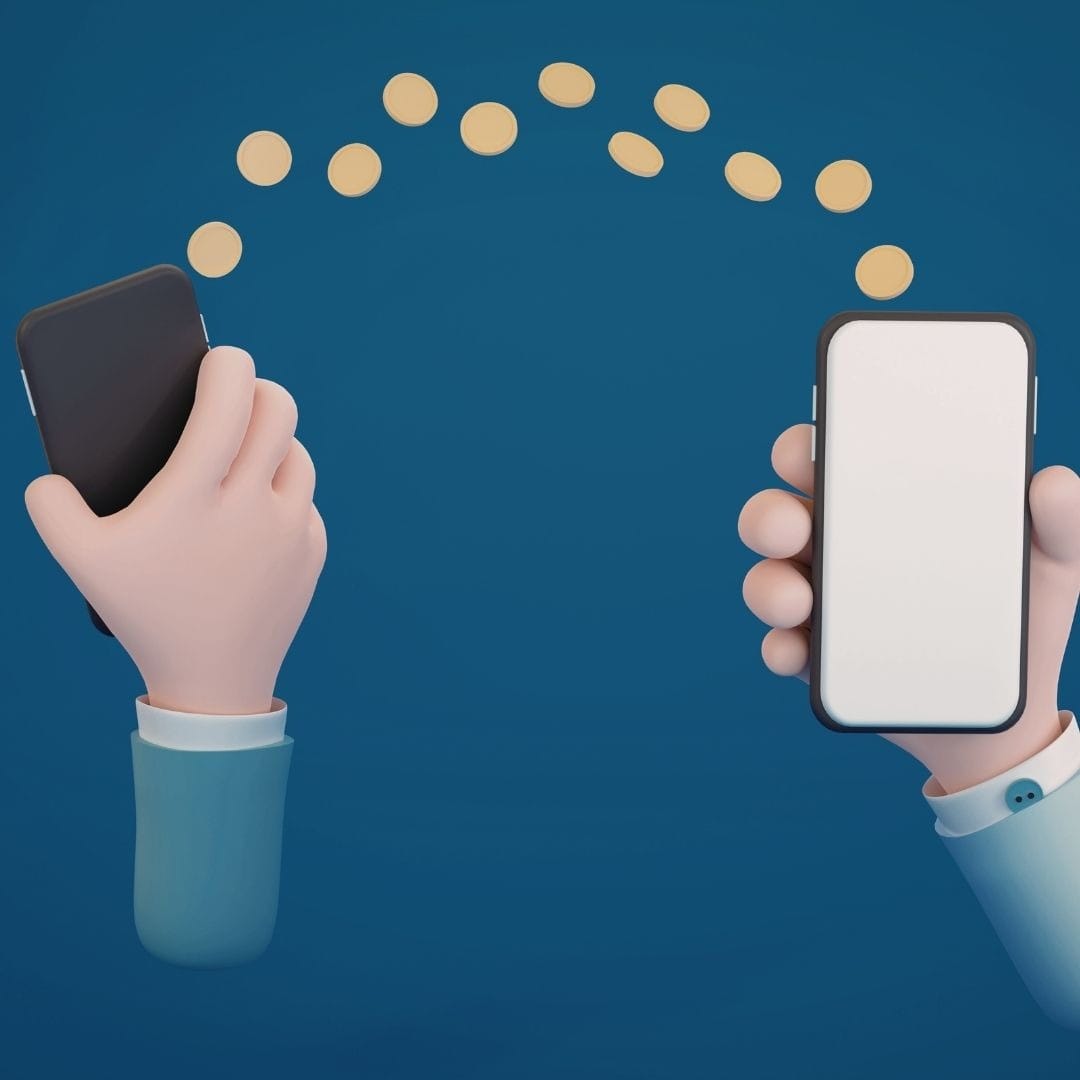
How to Transfer eSIM to from iPhone to iPhone
When upgrading to a new iPhone, transferring your eSIM is a critical step in the setup process. Apple has made this increasingly seamless with each iOS update, but understanding the process ensures a smooth transition.
Transfer via Quick Start (Recommended Method):
The easiest way to transfer eSIM from one iPhone to another is during the initial setup using Apple's Quick Start feature:
- Place your new iPhone near your old iPhone
- When the Quick Start screen appears on your new iPhone, tap "Continue" on your old iPhone
- Follow the prompts to authenticate and begin the setup process
- When you reach the "Transfer Your Data" screen, select "Transfer from iPhone"
- During this process, you'll see an option to "Transfer Cellular Plan"
- Select the eSIM plans you want to transfer
- Your carrier may require verification through their app or via SMS
- Complete the remaining setup steps
The entire process typically takes just a few minutes, and your eSIM will be active on your new iPhone while being automatically deactivated on your old device.
Transfer via Carrier Conversion:
Some carriers support direct eSIM transfer without going through Quick Start:
- On your new iPhone, go to Settings, then Cellular
- Tap "Add Cellular Plan"
- Look for "Transfer From Another iPhone" option
- Select your old iPhone from the list
- Confirm the transfer on your old iPhone when prompted
- The eSIM will move to your new device
Manual Reactivation:
If automatic transfer isn't available or doesn't work:
- Contact your carrier to deactivate the eSIM on your old iPhone
- Request a new eSIM QR code or activation details for your new iPhone
- Follow the standard eSIM activation process on your new device
- Once activated, the old eSIM will automatically become invalid
Important Considerations When Transferring eSIM
Backup Your Old iPhone First: Before transferring, ensure you've backed up your old iPhone to iCloud or your computer. While eSIM transfer shouldn't affect your data, having a complete backup provides peace of mind.
Carrier Compatibility: Not all carriers support automatic eSIM transfer. Some may require you to contact customer service or visit a store to complete the transfer. Check with your carrier beforehand to understand their specific process.
Keep Old iPhone Nearby: During the transfer process, both iPhones need to be close together with Wi-Fi and Bluetooth enabled. Don't reset or power off your old iPhone until the transfer is completely finished.
Verify Activation: After the transfer completes, verify that your cellular service is working on your new iPhone before erasing your old device. Make a test call and confirm data connectivity.
Multiple eSIMs: If you have multiple eSIM profiles on your old iPhone, you can choose which ones to transfer during the setup process. You don't need to transfer all of them if you only use certain lines regularly.
How to Transfer eSIM from iPhone to Android
Switching from iPhone to Android? While the process isn't as seamless as transferring between devices within the same ecosystem, moving your eSIM is definitely possible. Here's what you need to know about making the switch.
Understanding the Transfer Process
Unlike transferring an eSIM between two iPhones, moving from iPhone to Android requires a slightly different approach since the two operating systems don't communicate directly for eSIM transfers. The good news is that your carrier can help facilitate this transition.
Step-by-Step Transfer Process
1. Contact Customer Support
The first and most important step is to reach out to the customer support. Since eSIM profiles are tied to your carrier account, they'll need to initiate the transfer process. You can reach out to our support desk by raising a ticket with the required information.
2. Remove eSIM from Your iPhone
Before activating the eSIM on your Android device, you'll want to remove it from your iPhone:
- Open Settings on your iPhone
- Tap on Cellular or Mobile Data
- Select the eSIM plan you want to transfer
- Tap "Remove Cellular Plan" or "Delete eSIM"
Note that this step is sometimes done after the new eSIM is activated on Android, depending on your carrier's process.
3. Request a New eSIM QR Code
Ask your eSIM provider to generate a new eSIM activation QR code or provide you with an activation code for your Android device. This is essentially a fresh eSIM profile that will carry over your existing phone number and plan details.
4. Activate eSIM on Your Android Device
Once you have your QR code or activation details:
- Open Settings on your Android phone
- Navigate to Network & Internet or Connections
- Tap on SIMs or Mobile Network
- Select "Add eSIM" or "Download eSIM"
- Scan the QR code provided by your carrier or enter the activation code manually
- Follow the on-screen prompts to complete the setup
5. Verify the Connection
After activation, make sure your eSIM is working properly by checking that you can make calls, send texts, and access mobile data. Restart your Android device if needed.
Important Considerations
Carrier-Specific Variations: Different carriers have unique processes for eSIM transfers. Some may allow you to generate a new QR code through their app, while others require you to speak with a representative. The exact steps can vary significantly.
Timing: The transfer process typically takes anywhere from a few minutes to a few hours, depending on your carrier's system and current network conditions.
Backup Your Data: Before making any changes, ensure you've backed up all important data from your iPhone using iCloud or another backup method. While the eSIM transfer won't affect your data, it's always better to be safe.
Multiple eSIMs: If you're using multiple eSIM profiles on your iPhone, you'll need to transfer each one separately, following the same process for each carrier.
Need Help?
Since iPhone to Android eSIM transfer procedures can vary significantly depending on your carrier, we recommend reaching out to our support team at https://mobimatter.com/troubleshoot for personalized assistance with your specific situation. Our team can guide you through carrier-specific steps and help troubleshoot any issues you might encounter during the transfer process.
Removing and Deleting eSIM from iPhone
How to Delete eSIM from iPhone
There are several situations where you might need to remove an eSIM from your iPhone: you're switching carriers, no longer need a particular cellular plan, are preparing to sell your device, or troubleshooting connectivity issues. The process is straightforward but irreversible, so ensure you're certain before proceeding.
How to Remove eSIM from iPhone:
- Open the Settings app on your iPhone
- Scroll down and tap Cellular or Mobile Data
- You'll see a list of all your cellular plans
- Tap on the eSIM plan you want to remove
- Scroll down and tap "Remove Cellular Plan" or "Delete eSIM"
- Confirm the deletion when prompted
Once you delete an eSIM, it's permanently removed from your device. You cannot undo this action. If you want to use that cellular plan again, you'll need to obtain a new activation code or QR code from your carrier.
What Happens When You Delete an eSIM:
When you remove an eSIM from your iPhone, several things occur:
- The eSIM profile is completely erased from your device
- You immediately lose cellular service associated with that plan
- The phone number can no longer receive calls or messages on your iPhone
- Any data associated with that line stops working
- Your carrier is typically notified that the eSIM has been removed
Before You Delete:
Consider these factors before removing an eSIM:
- Will you need this number again? If you're just troubleshooting, try turning the line off temporarily instead of deleting it
- Have you backed up any important data associated with this line?
- Do you have any two-factor authentication systems linked to this number?
- Are there any active subscriptions or services using this number?
When to Temporarily Deactivate Instead of Delete
In many cases, temporarily turning off an eSIM is a better option than deleting it entirely:
To Deactivate an eSIM:
- Go to Settings, then Cellular
- Tap on the plan you want to deactivate
- Toggle off "Turn On This Line"
The eSIM remains stored on your device and can be reactivated at any time by toggling the switch back on. This is ideal when you want to temporarily stop using a particular line, such as a travel eSIM after returning home, without permanently removing it.
eSIM vs Physical SIM: A Detailed Comparison
Technical Differences
Understanding the fundamental differences between eSIM and physical SIM cards helps clarify why this technology represents such a significant advancement.
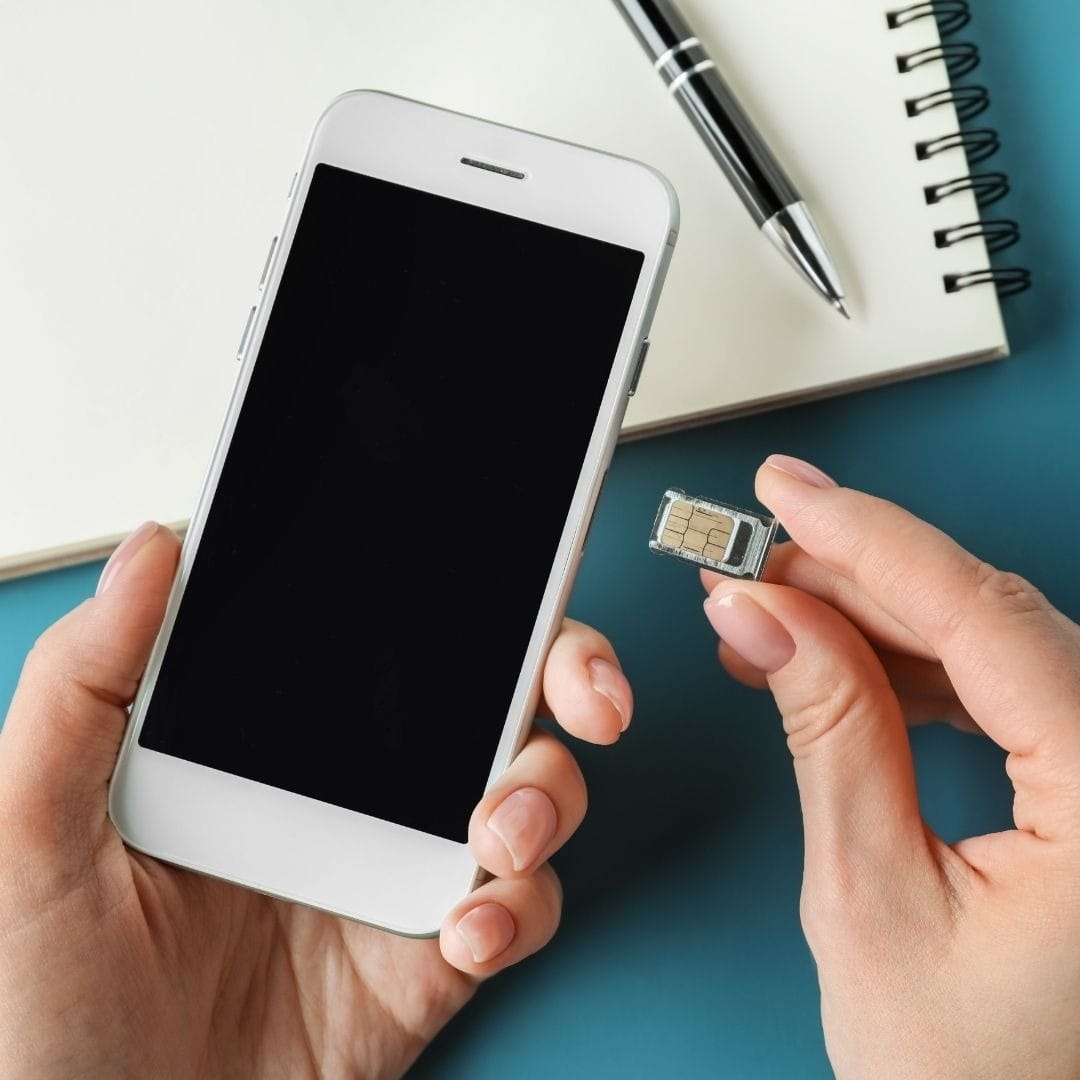
Physical SIM Cards: Physical SIM cards are removable chips that slot into your device. They contain a secure microcontroller and memory that stores your subscriber information, authentication keys, and network data. When you want to change carriers or move your service to a new device, you physically remove the SIM card and insert it elsewhere.
eSIM Technology: An eSIM is soldered directly onto your iPhone's motherboard during manufacturing. It's a reprogrammable chip that can download and store multiple carrier profiles. Instead of physically swapping cards, you download new profiles over the air through software.
The technical architecture is similar in terms of security and authentication. Both use the same underlying cryptographic standards to ensure secure connections to cellular networks. The primary difference lies in the delivery mechanism: physical distribution versus digital provisioning.
Practical Advantages of eSIM
Immediate Activation: Physical SIM cards require shipping or in-person pickup. eSIM activation can happen in minutes, entirely through software.
Multiple Profiles: A physical SIM card represents one carrier profile. An eSIM can store numerous profiles, though only one or two can be active simultaneously depending on your device.
No Physical Handling: There's no risk of losing a tiny SIM card, damaging it, or dealing with incompatible SIM sizes.
Space Efficiency: Removing the SIM tray allows manufacturers to use that internal space for larger batteries, additional sensors, or other components.
Better Water Resistance: One fewer physical opening means better protection against water and dust ingress.
Remote Provisioning: Carriers can update or troubleshoot your eSIM remotely without requiring you to visit a store or receive a new physical card.
Situations Where Physical SIM Might Still Be Preferable
Despite the numerous advantages of eSIM, there are scenarios where physical SIM cards still offer benefits:
Carrier Support: Not all carriers worldwide support eSIM yet, particularly smaller regional carriers or those in developing markets.
Device Flexibility: With a physical SIM, you can easily move your service between any compatible device by swapping the card. This is useful if you regularly switch between multiple devices or use feature phones.
Immediate Device Swapping: If your iPhone breaks, you can immediately pop your physical SIM into another device and have service. With eSIM, you need to go through a reactivation process.
No Internet Required: Physical SIM activation doesn't require internet connectivity, while eSIM activation typically requires Wi-Fi or an existing data connection.
Privacy Considerations: Some users prefer physical SIMs because they offer slightly more control over when and how their service is activated or deactivated.
For most users, however, the convenience and flexibility of eSIM technology far outweigh these minor limitations, especially as carrier support continues to expand globally.
eSIM and International Travel: A Game-Changer
How eSIM Transforms Travel Connectivity
International travel has historically meant dealing with frustrating connectivity challenges. Traditional options included paying exorbitant roaming fees to your home carrier, purchasing local SIM cards in each country (requiring finding vendors, communicating in potentially unfamiliar languages, and risking the loss of your original SIM card), or relying solely on Wi-Fi hotspots.
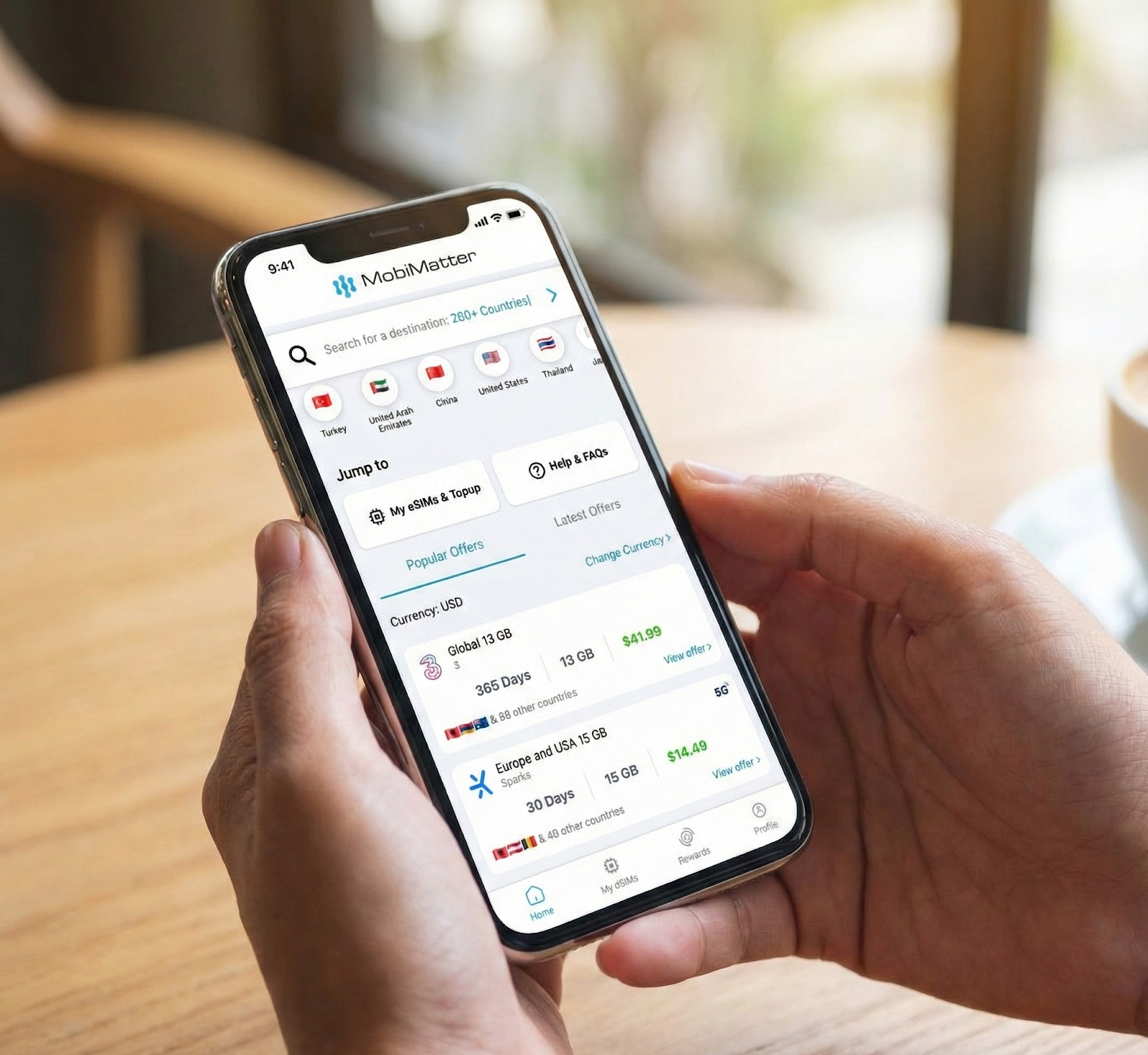
eSIM technology has revolutionized this experience, making international connectivity seamless and affordable. The ability to purchase and activate local data plans before you even leave home means you can step off the plane with immediate access to local networks at local rates.
Regional eSIM Plans for Travelers
Modern eSIM providers offer both country-specific and regional plans that can cover multiple countries in a single package. This is particularly valuable for travelers visiting several countries in one trip.
Europe Travel: If you're planning a European vacation visiting multiple countries, you can purchase a single eSIM for Europe that works across the entire continent. Instead of buying new SIM cards in France, then Italy, then Germany, you have continuous coverage throughout your journey. This eliminates the hassle of repeatedly finding SIM card vendors and allows you to maintain the same phone number throughout your trip.
Asia Travel: Similarly, eSIM plans for Asia can provide coverage across multiple Asian countries, perfect for multi-destination trips through the region.
Middle East Connectivity: Travelers to the United Arab Emirates can take advantage of eSIM options for Dubai and the broader UAE, ensuring connectivity for both business and leisure visits to this popular destination.
Country-Specific eSIM Solutions
For longer stays in a single country or business trips to specific locations, country-specific eSIM plans often provide the best value and coverage:
China: International travelers to China face unique connectivity challenges due to internet restrictions. Specialized eSIM plans for China can help visitors stay connected while navigating these limitations.
Japan: Whether visiting Tokyo for business or exploring Kyoto's temples, eSIM plans for Japan offer high-speed connectivity on the country's excellent mobile networks.
Canada: Travelers heading north can set up eSIM coverage for Canada before crossing the border, avoiding expensive US carrier roaming fees.
Spain: From Barcelona's architecture to Madrid's museums, eSIM options for Spain keep you connected throughout your Spanish adventure.
Vietnam: Whether exploring Hanoi, cruising Ha Long Bay, or visiting Ho Chi Minh City, eSIM plans for Vietnam provide reliable connectivity throughout the country.
Egypt: Discovering ancient pyramids and temples is easier with eSIM connectivity in Egypt, keeping you connected from Cairo to Luxor.
Indonesia: Island hopping through Indonesia becomes simpler with eSIM coverage for Indonesia, from Bali to Jakarta.
Turkey: Bridge two continents with reliable eSIM service in Turkey, whether exploring Istanbul or the Mediterranean coast.
Portugal: Navigate Lisbon's hills and Porto's wine cellars with eSIM connectivity in Portugal.
Greece: From Athens' ancient sites to island hopping in the Aegean, eSIM plans for Greece keep you connected.
Hong Kong: Stay connected in this dynamic city with eSIM options for Hong Kong.
Saudi Arabia: Business or pilgrimage travelers can benefit from eSIM coverage in Saudi Arabia.
Taiwan: Explore Taipei and beyond with reliable eSIM connectivity in Taiwan.
Germany: From Berlin to Bavaria, eSIM plans for Germany provide excellent coverage.
United Kingdom: Navigate London and the rest of the UK with eSIM service.
United States: International visitors to America can set up eSIM coverage for the USA before arrival.
Travel eSIM Setup Strategy
For optimal travel connectivity with your iPhone, consider this strategic approach:
Before Departure:
- Research eSIM options for your destination well before your trip
- Purchase and download your travel eSIM while still at home
- Test that the eSIM is properly installed but keep it deactivated
- Ensure your primary home number remains your default line
Upon Arrival:
- As soon as you land and turn off airplane mode, activate your travel eSIM
- Set the travel eSIM as your default for cellular data
- Keep your home number active for calls and messages
- Your iPhone will now use local data rates while keeping you reachable on your regular number
During Your Trip:
- Monitor your data usage through your iPhone settings
- Top up your eSIM data if needed (most providers allow this through apps or websites)
- Enjoy local data speeds without worrying about surprise roaming charges
After Returning Home:
- Switch your cellular data back to your primary line
- Deactivate (not delete) your travel eSIM
- The profile remains stored on your device for future trips to that region
This approach gives you the best of both worlds: affordable local data rates and continuous access to your primary phone number.
Advanced eSIM Features and Settings
Customizing eSIM Labels and Preferences
Your iPhone provides extensive customization options for managing multiple eSIM profiles effectively. Taking advantage of these features ensures you always know which line you're using and can quickly switch between them as needed.
Creating Meaningful Labels: When you have multiple eSIM profiles, clear labeling is essential. Your iPhone offers preset labels like "Primary," "Secondary," "Business," "Personal," and "Travel," but you can also create custom labels. Consider labeling by purpose (Work, Personal), by carrier name, or by location (Home, International).
To customize labels:
- Go to Settings, then Cellular
- Tap on the plan you want to label
- Select "Cellular Plan Label"
- Choose a preset or tap "Custom Label" to create your own
Setting Default Lines: Your iPhone lets you designate which line handles different types of communication:
- Default Voice Line: Which number appears when you call someone not in your contacts
- Cellular Data: Which plan provides your internet connection
- iMessage & FaceTime: Which number is associated with these Apple services
You can set these independently, allowing sophisticated configurations like using one line for data but another for voice calls.
Contact-Specific Line Assignment: For contacts in your phone, you can assign a specific cellular line:
- Open a contact
- Tap "Edit"
- Tap "Preferred Line"
- Choose which line to use for calls and messages to this contact
This is particularly useful for keeping work and personal communications separate. Your work contacts will always use your business line, even if your personal line is your default.
Call and Message Handling with Dual eSIM
When using two active cellular plans on your iPhone, understanding how calls and messages are handled helps you manage communications effectively.
Incoming Calls: By default, both lines can receive calls simultaneously. When a call comes in, your iPhone displays which line is receiving the call. You can answer on either line, and the other line will show "on another line" for the duration of the call.
If you prefer, you can set one line as "Do Not Disturb" while keeping the other active, useful when you want work calls to go to voicemail outside business hours while remaining available on your personal line.
Outgoing Calls: When making calls, your iPhone uses your default voice line unless:
- You're calling a contact with a preferred line assigned
- You manually select a different line before dialing
- The last call with a contact was on a specific line (iPhone remembers this preference)
Text Messages: iMessage and SMS handling with dual lines is sophisticated:
- iMessage can be associated with both lines simultaneously, allowing you to send and receive iMessages on either number
- SMS messages use the line designated for each contact or your default messaging line
- Group messages continue on the line where the conversation started
- You can switch lines before sending a message by tapping on the "From" line at the top of the message
Cellular Data Switching: Your iPhone intelligently manages cellular data across your dual lines:
- You designate one line as your primary data line
- If that line has no service, your iPhone can automatically switch to the other line for data (if you enable "Allow Cellular Data Switching")
- This ensures you maintain connectivity even when traveling or in areas with spotty coverage from one carrier
Privacy and Security Settings
eSIM technology offers enhanced privacy and security features that go beyond traditional SIM cards:
SIM Lock Prevention: With eSIM-only devices like the iPhone 14 and newer US models, SIM-swapping attacks become significantly more difficult. Thieves cannot simply remove your SIM card to bypass certain security measures or use your number fraudulently.
Carrier Lock Status: You can verify if your iPhone is carrier-locked:
- Go to Settings
- Tap General
- Select About
- Scroll to "Carrier Lock"
- It will show "No SIM restrictions" if unlocked
Two-Factor Authentication Considerations: When using multiple lines, be mindful of which number you associate with important accounts for two-factor authentication:
- Use your most stable, long-term number for critical accounts
- Document which line is associated with which services
- Before deleting an eSIM, ensure you've updated 2FA settings for any affected accounts

Troubleshooting Common eSIM Issues on iPhone
We recommend reaching out to our Support team by submitting a ticket with all the required information.
No Service or Signal Issues
If your eSIM isn't connecting to the cellular network, try these solutions:
Basic Troubleshooting:
- Toggle Airplane Mode on and off
- Restart your iPhone
- Go to Settings > Cellular > [Your Plan] and toggle "Turn On This Line" off and back on
- Check if there's a carrier settings update available (Settings > General > About)
Network Selection: Sometimes manually selecting your carrier helps:
- Go to Settings > Cellular > Network Selection
- Turn off "Automatic"
- Wait for available networks to appear
- Select your carrier manually
- If this works, you can switch back to Automatic
Reset Network Settings: If problems persist:
- Go to Settings > General > Transfer or Reset iPhone
- Select "Reset"
- Choose "Reset Network Settings"
- Enter your passcode
- Confirm the reset
Note that this will erase saved Wi-Fi passwords, VPN settings, and cellular settings, so you'll need to reconfigure these afterward.
eSIM Not Showing in Settings
If you've activated an eSIM but it's not appearing in your Cellular settings:
Verify Installation:
- Ensure the activation process completed fully without errors
- Check if you received a confirmation email or message from your carrier
- Contact your carrier to verify the eSIM was provisioned on their end
iOS Update: Outdated iOS versions can sometimes cause eSIM recognition issues:
- Go to Settings > General > Software Update
- Install any available updates
- Restart your iPhone after updating
Reactivate the eSIM: If the eSIM still doesn't appear, you may need to delete and reinstall it:
- Reach out to MobiMatter support team for a new activation code
- Follow the standard activation process again
Cellular Data Not Working on eSIM
If you have signal but no data connection:
Check Cellular Data Settings:
- Ensure cellular data is turned on (Settings > Cellular > Cellular Data)
- Verify the correct line is selected for data
- Check that "Data Mode" isn't set to "Low Data Mode" if you need full speed
APN Settings: Some carriers require specific APN (Access Point Name) settings:
- Go to Settings > Cellular > [Your Plan] > Cellular Network
- Enter the APN settings provided by your carrier
- Most major carriers configure this automatically, but smaller carriers may require manual entry
Data Roaming: If traveling internationally:
- Go to Settings > Cellular > [Your Plan]
- Ensure "Data Roaming" is enabled for your travel eSIM
- Check that you haven't exceeded your data allowance
Call Quality or Connection Problems
Enable Wi-Fi Calling: If cellular signal is weak but you have good Wi-Fi:
- Go to Settings > Cellular > [Your Plan]
- Enable "Wi-Fi Calling"
- This routes calls through Wi-Fi instead of cellular networks
VoLTE Settings: Voice over LTE can improve call quality:
- Go to Settings > Cellular > [Your Plan] > Voice & Data
- Select "LTE, VoLTE On" or "5G On" depending on available options
- VoLTE must be supported by your carrier
Carrier Name Shows "Searching" or "No Service"
Verify Coverage: First, confirm you're in an area with coverage from your carrier. Check their coverage maps online.
SIM Status Check:
- Dial *#06# to display your IMEI and EID (eSIM identifier)
- Verify these numbers match what your carrier has on file
- Contact our support desk for any further assistance

The Future of eSIM Technology
Emerging Trends and Developments
eSIM technology continues to evolve rapidly, with several exciting developments on the horizon:
Complete eSIM Adoption: Apple's decision to make US iPhone 14 and newer models eSIM-only signals the industry's direction. Other manufacturers are following suit, and within a few years, physical SIM cards may become rare even in global markets.
Enhanced Remote SIM Provisioning: Future iterations will make it even easier to switch carriers, potentially allowing instant carrier changes without any manual configuration or QR codes.
Integrated IoT Applications: eSIM technology is expanding beyond smartphones into watches, tablets, laptops, cars, and IoT devices, creating seamless connectivity across all your devices.
Blockchain Integration: Some companies are exploring blockchain-based eSIM systems that could give users even more control over their mobile identity and carrier relationships.
Multi-eSIM Support Expansion
Current iPhones can store multiple eSIM profiles and activate two simultaneously. Future devices may support activating three, four, or more lines concurrently, further enhancing flexibility for users with complex connectivity needs.
Regulatory Evolution
As eSIM becomes standard, regulations are evolving to ensure:
- Consumers maintain the right to easily switch carriers
- Competition remains healthy in the telecommunications market
- Security standards protect users from fraud and unauthorized access
- International roaming becomes simpler and more affordable
Impact on the Telecommunications Industry
eSIM technology is fundamentally disrupting the traditional carrier business model:
Reduced Barriers to Switching: When changing carriers requires only downloading an app and scanning a code, customer loyalty dynamics shift dramatically. Carriers must compete more aggressively on service quality and pricing.
MVNOs and New Entrants: The ease of eSIM provisioning has lowered barriers for new mobile virtual network operators, fostering innovation and competition.
Travel-Focused Services: Companies specializing in international eSIM plans are thriving, offering travelers unprecedented flexibility and value.
Retail Transformation: Physical carrier stores are evolving their role as eSIM reduces the need for in-person visits for new activations or device changes.
Best Practices for Using eSIM iPhone
Optimization Tips for Daily Use
Label Your Plans Clearly: Take time to create meaningful labels for each eSIM profile. Future you will appreciate knowing instantly which line is which, especially in time-sensitive situations.
Set Smart Defaults: Think carefully about which line should be your default for data, voice, and messaging. Consider factors like data allowances, coverage quality, and cost.
Monitor Data Usage: With multiple plans, it's easy to lose track of usage:
- Go to Settings > Cellular
- Review usage for each line
- Set up data alerts if your carrier supports them
- Reset statistics at the beginning of each billing cycle to track monthly usage
Keep Emergency Numbers Accessible: Ensure at least one of your lines always has adequate service for emergency calls. In emergencies, iPhone will automatically use whichever line has the best signal.
Security Best Practices
Protect Your Apple ID: Your Apple ID credentials control eSIM activation and management. Use a strong, unique password and enable two-factor authentication on your Apple ID account.
Be Cautious with QR Codes: Only scan eSIM QR codes from legitimate carrier sources. Fraudulent QR codes could potentially be used in social engineering attacks.
Document Your eSIM Information: Keep records of:
- Which eSIM profiles you have installed
- Activation dates and QR codes (stored securely)
- Associated phone numbers
- Carrier contact information
Before Selling or Giving Away Your iPhone: Always delete all eSIM profiles before transferring ownership:
- Go to Settings > General > Transfer or Reset iPhone
- Select "Erase All Content and Settings"
- This removes all eSIM profiles along with your personal data
Travel-Specific Tips
Test Before You Travel: If possible, activate your travel eSIM a day or two before departure to ensure everything works correctly. You can keep it installed but deactivated until you arrive.
Understand Coverage Areas: Not all regional eSIM plans work in every country within a region. Verify your specific destinations are covered before purchase. MobiMatter provides all the details in the plan regarding the countries covered and networks you will be connected to.
Consider Data Needs: Estimate your data usage realistically:
- Basic browsing and messaging: 1-3 GB per week
- Regular social media use: 3-5 GB per week
- Video streaming: 10+ GB per week
- Navigation apps: 100-200 MB per day
Keep Your Home Number Active: Even with a travel eSIM for data, keeping your primary number active ensures you can receive important calls and verification codes.

Real-World Use Cases and Success Stories
Business Professionals
Scenario: A consultant travels frequently between offices in different countries.
eSIM Solution: Maintains a primary US eSIM for business calls and messages, with the ability to quickly activate local eSIMs in each country for data. This keeps them reachable on their main number while avoiding thousands in roaming charges annually.
Result: Saves approximately 70-80% on international connectivity costs while maintaining professional responsiveness.

Digital Nomads
Scenario: A remote worker travels continuously, spending 1-3 months in different countries.
eSIM Solution: Uses a primary eSIM from their home country for banking and important services, while maintaining a rotating collection of local eSIMs for wherever they're currently based. The iPhone can store 8+ eSIM profiles, making it easy to reactivate previously used plans when returning to countries.
Result: Maintains multiple "home bases" digitally, with local-quality data wherever they travel, without carrying multiple devices or constantly swapping physical SIM cards.

International Students
Scenario: A student studying abroad for a semester wants to maintain their home number for family and bank communications while having affordable local connectivity.
eSIM Solution: Keeps home country eSIM active for essential calls and messages, uses local eSIM for daily data needs. Can easily switch which line is active for data to control costs.
Result: Stays connected to home without expensive international calling plans while enjoying full local connectivity for daily life.

Frequent Vacationers
Scenario: A family takes international vacations 2-3 times per year to various destinations.
eSIM Solution: Each family member has their primary carrier eSIM, and parents purchase temporary travel eSIMs for each trip. The eSIM profiles remain stored on devices and can be reactivated for return visits without repurchasing.
Result: Seamless connectivity during trips without the stress of finding local SIM cards or dealing with roaming charges. Parents can easily monitor children's whereabouts and stay in touch.
Frequently Asked Questions About iPhone eSIM
Can I Use Both eSIM and Physical SIM Simultaneously?
Yes, most iPhones with eSIM support (except US models of iPhone 14 and newer) can use both a physical nano-SIM and an eSIM at the same time. This gives you dual-SIM functionality with maximum flexibility. You can choose which line to use for data, voice, and messaging independently.
How Many eSIMs Can My iPhone Store?
Your iPhone can store approximately 8-10 eSIM profiles depending on the model, though only one or two can be active simultaneously. This means you can keep multiple carrier profiles ready to activate without needing to download them again.
Does eSIM Drain Battery Faster?
eSIM itself doesn't inherently consume more battery than a physical SIM. However, if you're actively using dual-SIM functionality with two lines constantly searching for signal or receiving data, battery consumption may increase slightly compared to using a single line. The impact is generally minimal with modern iPhones.
Can I Share My eSIM with Another Device?
No, eSIM profiles are device-specific and cannot be shared between devices. Each eSIM activation is tied to your specific iPhone's hardware identifier. If you want the same carrier service on multiple devices, you'll need separate eSIM activations for each.
What Happens to My eSIM if I Reset My iPhone?
If you perform a full reset (Erase All Content and Settings), all eSIM profiles are removed from your device. You'll need to reactivate them afterward using new QR codes from your carrier. However, if you use Quick Start to transfer to a new iPhone, your eSIMs can be transferred during that process.
Is eSIM More Secure Than Physical SIM?
eSIM offers certain security advantages, particularly against SIM-swapping attacks and physical theft. However, both technologies use similar cryptographic standards for network authentication. The main security benefit of eSIM is that it cannot be physically removed from a stolen device.
Can I Convert My Physical SIM to eSIM?
Yes, most carriers allow you to convert an existing physical SIM service to eSIM. Contact your carrier to request the conversion. They'll provide you with an eSIM QR code, and once you activate the eSIM, your physical SIM becomes inactive.
Do Emergency Services Work with eSIM?
Yes, emergency services work identically with eSIM as with physical SIM cards. Your iPhone will automatically use whichever line has the best signal for emergency calls, regardless of your settings. In countries where emergency services require a SIM card, eSIM functions exactly like a physical SIM.
Will eSIM Work if I Travel to a Country Where My Carrier Doesn't Operate?
Your eSIM will work if your carrier has roaming agreements in that country. However, roaming charges may apply. Alternatively, you can purchase a local eSIM for that country for more affordable rates while keeping your primary eSIM active for incoming calls.
Can I Use eSIM with Prepaid Plans?
Yes, many carriers offer eSIM support for prepaid plans, though availability varies by carrier and region. Travel-focused eSIM providers almost exclusively operate on prepaid models, making them ideal for temporary or occasional use.
Conclusion: Embracing the eSIM Future
The transition from physical SIM cards to eSIM technology represents one of the most significant advances in mobile connectivity since the smartphone itself. For iPhone users, eSIM offers unprecedented flexibility, convenience, and control over cellular service.
Whether you're a frequent international traveler tired of dealing with physical SIM cards, a business professional managing multiple phone numbers, or simply someone who values the latest technology, eSIM delivers tangible benefits that improve your daily experience with your iPhone.
The initial learning curve is minimal, and most users find that once they experience the convenience of eSIM like activating service in minutes, switching carriers without visiting stores, or maintaining multiple numbers on a single device, they never want to go back to physical SIM cards.
As global carrier support continues to expand and the technology matures, eSIM will become increasingly central to how we think about mobile connectivity. US iPhone 14 and newer models have already eliminated physical SIM cards entirely, and this trend will undoubtedly spread to other markets and devices.
The future of mobile connectivity is digital, flexible, and user-controlled. eSIM iPhone is not just a feature, it's a fundamental reimagining of how our devices connect to the world. By understanding how to use eSIM effectively, you're not just keeping up with technology; you're unlocking capabilities that can genuinely improve your mobile experience, save money, and provide peace of mind whether you're at home or traveling the globe.
Take the time to explore eSIM options available for your iPhone, experiment with dual-SIM functionality, and discover how this technology can work for your specific needs. The era of fumbling with tiny physical SIM cards and SIM ejector tools is ending. Welcome to the streamlined, digital future of mobile connectivity.